A Better View of the Game Table: Here’s What the Tactical Screen Can Do
Anyone who plays BattleTech regularly is familiar with the challenge: Mechs and vehicles are constantly getting bigger, Force Lists for Alpha Strike need to be put together flexibly, and on game day, assigning formations needs to go smoothly. To make these processes easier, I developed the Tactical Screen.
Since the app has grown tremendously, I’d like to introduce you to the core features that will noticeably simplify your workflow before and during the game.
1. Digital Hangar: Keep Track of Your Collection, Analyze Data, and Import Easily
The Digital Hangar is the heart of your unit management. Instead of rummaging through boxes or maintaining cluttered spreadsheets, you can digitally catalog your entire miniature collection here. You can easily access the Hangar at any time via the dashboard or—once you’re logged in—directly via the “Hangar” main menu item .
Statistics & Quadrant Analysis at a Glance
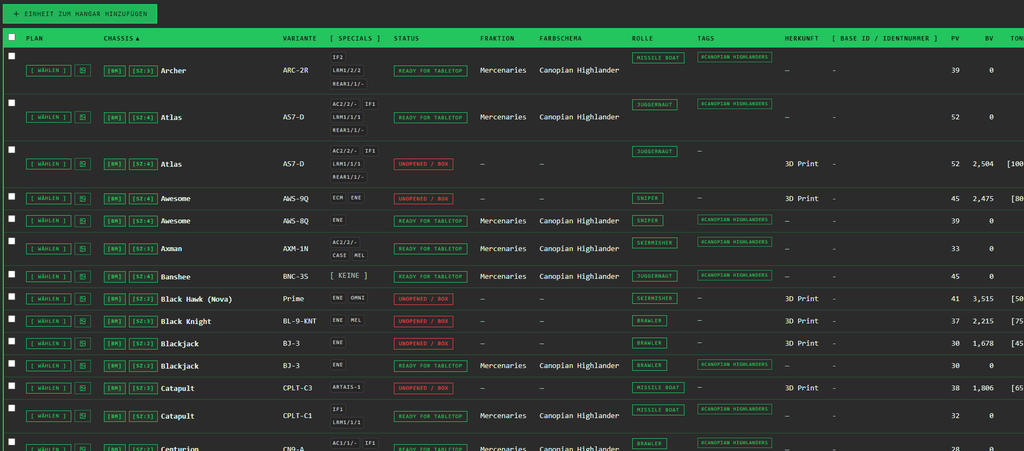
Detailed reports await you in the upper section of the hangar:
- Readiness Status & Size Categories: You can immediately see how many of your units are in which state (e.g., ready for use, painted, or still in the sprue) and how they are distributed across the various size categories (Size).
- Tactical Quadrant Analysis: A special feature is the quadrant chart. It classifies each of your units into one of four categories based on the ratio of offense to defense (in terms of points/HP):
- All-Star(High Offense × High Defense): High damage and high survivability per HP—the reliable backbone of your army.
- Glass Cannon(High Offense × Low Defense): High damage, but extremely fragile. These units must be skillfully kept behind cover.
- Anchor / Tarpit(Low Offense × High Defense): Can withstand massive fire but exert little pressure themselves—perfect for holding key positions or tying down the enemy.
- Support / Specialist(Low Offense × Low Defense): Tactical niche units, utility units, or inexpensive fillers.
Flexible Ways to Add Units
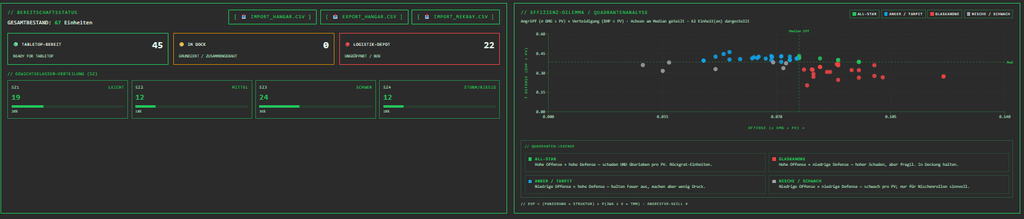
Below the statistics, you’ll find an overview table of all your registered Mechs and vehicles. You can add new units to your system in several ways:
- Manually: Use the “Add Unit to Hangar” button to add individual miniatures directly.
- MekBay Import (
IMPORT_MekBay.CSV): Do you already manage your units in MekBay? Simply use the dedicated import interface to seamlessly transfer your data. - Excel / Generic CSV Import (
IMPORT_HANGAR.CSV): If you prefer to manage your collection in Excel or other spreadsheets, the generic Hangar interface is available to you. A sample file is available for download—this interface covers all fields in the Digital Hangar.
2. Creating and Comparing Force Lists & Community Features
Creating an army list should be quick and intuitive. The Tactical Hub offers two ways to do this:
- Directly from the hangar (via the mission planner): Simply select the desired units in the hangar using the “Select” button . They will immediately be added to the mission planner on the right side of the screen. Once you’ve made your selection, click “Generate Force List.” A dialog box will open with your selected units already listed—all you have to do is fill in the remaining list details, click “Save,” and your list is ready!
- About “My Force Lists”: Click “My Force Lists” on the dashboard to view an overview of all the lists you’ve created. Click the “New Force List” button to open the creation dialog. Here, in the “INSERT UNITS FROM MASTER DATA” section, you can add any units to the list—ideal for planning new formations independently of your current inventory.
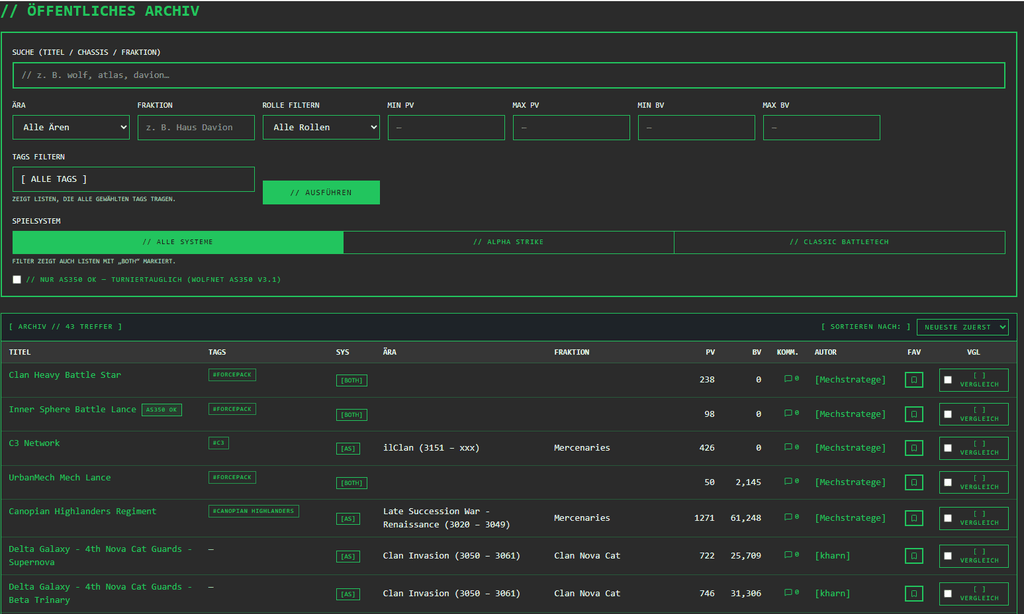
Private, Public, & Community Sharing:
Using the “MAKE LIST PUBLIC” button (top right), you can decide for yourself how visible your list is. Once a list is made public, it opens up to the community:
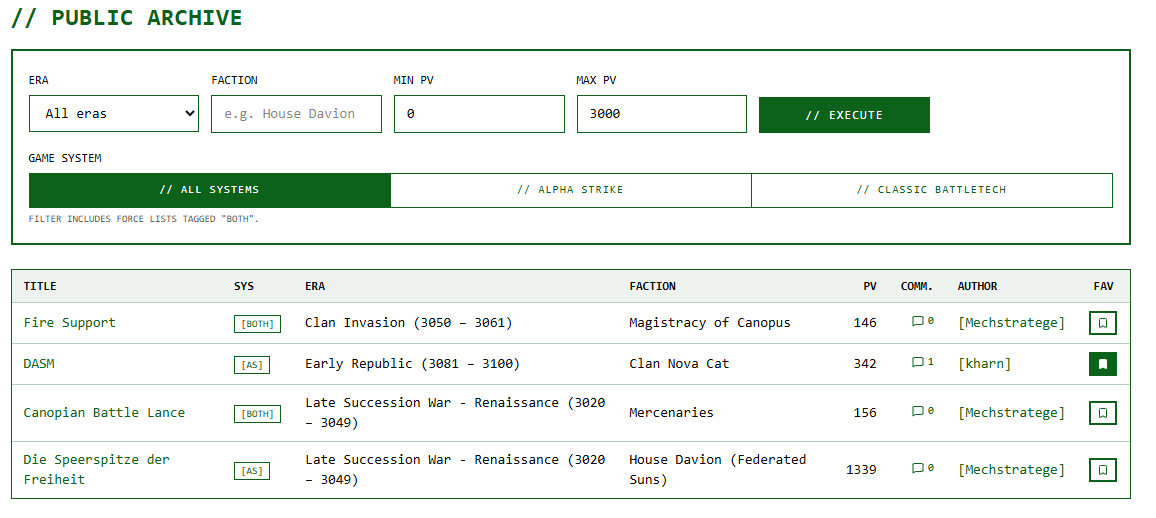
- Comment & Discuss: All registered users can comment on public lists. This creates a wonderful place to exchange ideas about list building, synergies, and tactics.
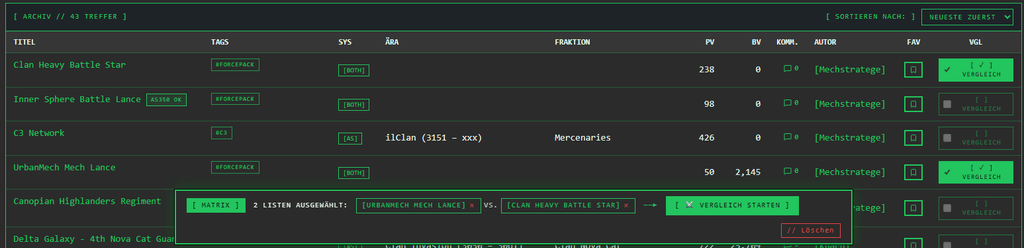
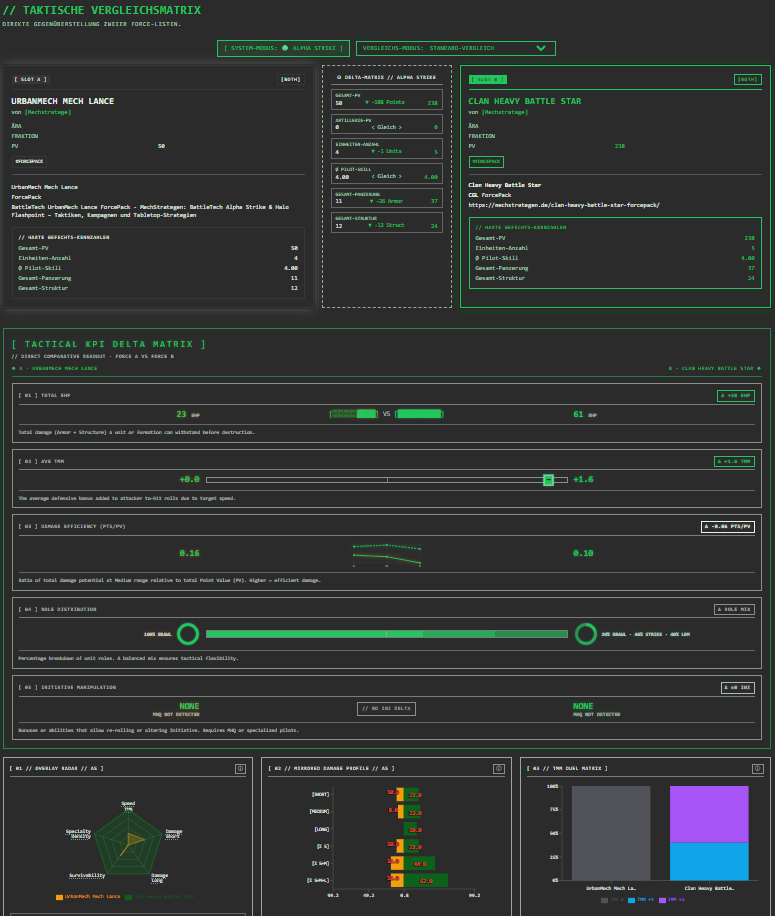
- Compare Lists: Using the “Compare” button, you can select two Force Lists (whether your own or public) and compare their strengths and weaknesses directly in a pop-up dialog.
- Create a Remix: Do you see a fantastic list—whether it’s yours or from the community—but want to tweak a few details? Just click “Create a Remix.” The system will generate a new working copy for you, where you can swap out and customize items as you like. What makes this special: The remix remains linked to the original list, so both lists reference each other, and the evolution of an idea remains visible to everyone!
3. Formation Builder & C3 Networks: A Rule-Compliant Structure on the Field
Once you’ve saved a list, two powerful tools for tactically fine-tuning your unit become available in the Edit or Insert dialog:
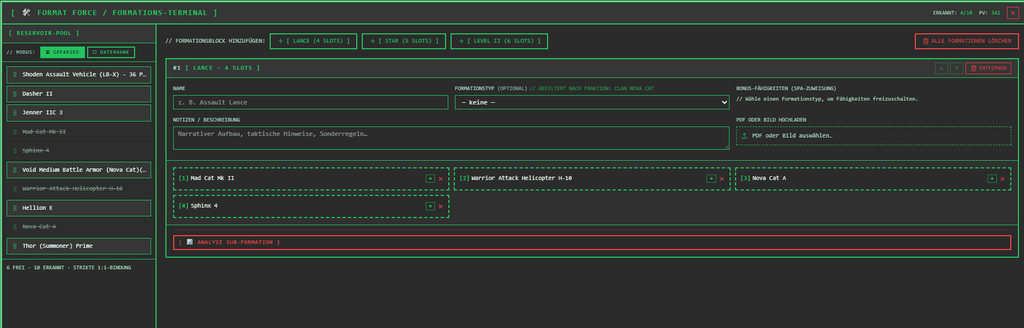
The Formation Builder (FORCE FORMATIEREN)
- Reservoir Pool & Formation Types: On the left side is the Reservoir Pool, which contains all the units on your list that haven’t been assigned to a formation yet. In the top bar, you can select which formation you want to create: a Lance (4 units), a Star (5 units), or a Level II (6 units). You can create as many formations as you like and easily assign units from the Reservoir Pool with a single mouse click.
- Details & Documentation: For each formation, you can assign individual names, add notes and comments, and upload your own images or PDF files.
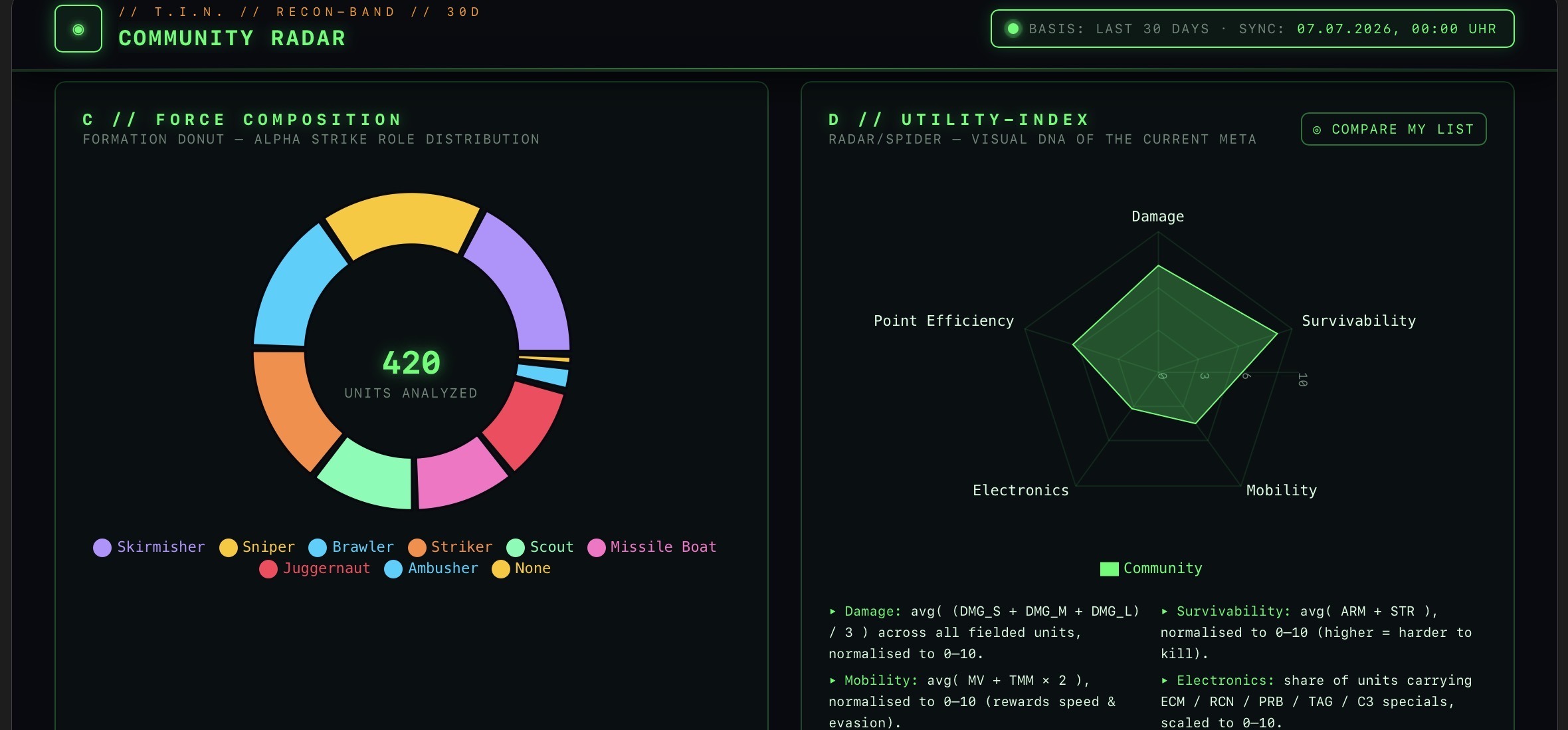
- Automatic Alpha Strike Rule Check: As soon as you assign a specific formation type to a formation, the Tactical Hub does the thinking for you: The system automatically checks, based on the official Alpha Strike rules, whether the assigned units meet the respective requirements.
The C3 Network
- Seamless Data Linking: If your list includes units with C3 technology, you can use the “C3 Network” feature to specify exactly which Mechs and vehicles are linked as C3 masters or C3 slaves with just a few clicks. This ensures you always have a clear overview, even with complex networks on the battlefield.
Let’s Work Together to Further Develop the Tactical Hub
Your opinion matters! If you have any ideas or suggestions for improvement, you can submit them directly via the “Feedback” menu item (a subitem under “Manuals”). At thetacticalscreen.mechstrategen.de/feedback, you can see a transparent overview of which suggestions have already been received, what we’re currently working on, and which features have already been successfully implemented.
Try out the features in the Tactical Hub right away and build your next army for the gaming table!
Transparency notice on the use of AI (in accordance with the EU AI Act):
The content of this blog is personally conceived, researched and defined by me. I use generative artificial intelligence to help me formulate and structure the texts.
Why? This enables me to prepare complex issues more precisely and to focus fully on the quality of the content and research. The final editorial control and responsibility for all published content lies solely with me.
Together for better content!
This blog is a project of the heart that can only continue to grow with your help. Every comment, every recommendation – and especially your financial support – secures the future of this platform.
Do you want this content to remain freely accessible?
This is how you can support the mission:
- NEWSLETTER REGISTRATION: Become part of the fast-growing community and never miss an update again!
- BECOME A PATREON MEMBER: Join the inner circle and get access to exclusive material and early releases.
- OTHER SUPPORT: Whether it’s a donation, sharing a post or recommending the blog to others – every form of support counts!
Let’s make this blog an even better place together!

Ich bin Sören Spieckermann, der Kopf hinter mechstrategen. Seit Jahren faszinieren mich taktische Tabletop-Schlachten und die strategische Tiefe von Mechs. Ob schnelle Gefechte in Halo: Flashpoint oder epische Schlachten bei BattleTech Alpha Strike – hier teile ich meine Erfahrungen und Taktiken mit dir. Mein Ziel? Sowohl Einsteigern den Start zu erleichtern als auch alten Hasen neue Impulse für das nächste Match zu geben.